
Slack added a built-in Lists feature for task management, but it requires a paid plan. If your team is on Slack's free plan (or you just want something simpler), you still have good options. This guide covers the practical ways to manage tasks inside Slack in 2026, from simple workarounds to dedicated apps, so you can pick what actually fits your workflow.
Ways to manage tasks in Slack
There is no single "right" way to manage tasks in Slack. What fits depends on how structured your work is and whether you are on a paid plan. Here are the main approaches, from the lightest free workarounds to dedicated apps.
1. Pinned messages and threads (free)
The simplest approach uses what Slack already gives you. Post a message listing what needs doing, pin it to the channel so it stays accessible, and use the thread under it for updates. It costs nothing and everyone in the channel can see it. The limitation is that there are no real tasks underneath: no assignees, no due dates, no way to mark something done except editing the message. It works for a short, shared checklist but breaks down once several people need to own different items.
2. The /remind command (free)
Slack's /remind command turns a task into a timed nudge, for yourself or a whole channel, including recurring ones like every Monday at 9am. It is genuinely useful for routine prompts, but a reminder is not a task: there is no assignment, no completion tracking, and it disappears once dismissed. See our full guide to setting reminders in Slack for the syntax and limits.
3. Canvas documents (free, limited)
Slack Canvas gives each channel a built-in document tab where you can keep a checklist with checkboxes. It is tidier than a pinned message and survives longer, but it is still a shared document rather than a task system: no per-person assignment, no due-date reminders, and no overview across channels.
4. Slack Lists (paid plan)
Slack's built-in Lists feature is the native task tool, with items, fields, and assignees. The catch is that it requires a paid plan, so unlocking it means upgrading your entire workspace, which gets expensive fast for larger teams (see the cost comparison below).
5. A dedicated Slack task app (works on the free plan)
Dedicated apps like Let's Do, Workast, or an Asana integration add proper task management on top of Slack: shared lists organized by channel, assignments, due dates, recurring tasks, subtasks, and a team overview, all without leaving Slack and without needing a paid Slack plan. The tradeoff is installing and (usually) paying for one more tool, though a per-workspace app is typically far cheaper than upgrading every Slack seat. For a fuller breakdown of the options, see does Slack have a to-do list? and our comparison of Slack Lists vs task apps.
Which approach should you use?
The best fit depends on how much structure your team actually needs:
| Approach | Best for | Limitations |
|---|---|---|
| Pinned messages + threads | A short shared checklist in one channel | No assignees, due dates, or completion tracking |
| /remind | Routine personal or channel nudges | Reminders, not tasks; no ownership or tracking |
| Canvas | A longer-lived channel checklist | A document, not a task system; no reminders or overview |
| Slack Lists | Native tasks if you are already on a paid plan | Requires upgrading the whole workspace |
| Dedicated app | Team task tracking on the free plan | One more tool to install and pay for |
Why use Slack for task management?
When your team is already using Slack for communication, having your task management in the same place is a great advantage:
👥 Everyone's already there
No need to switch between apps or remember another login. Your team can create, assign, and track tasks right where they're already working.
💬 Context stays connected
Keep discussions and tasks together in the same channel. Each task can have its own thread for updates and collaboration, making it easy to track progress and stay aligned.
⚡️ Faster responses
When tasks are right in Slack, team members can respond quickly and keep work moving. No more checking multiple tools or missing important updates.
🎯 Channel-based organization
Tasks naturally organize themselves by project or team channel, creating clear ownership and making it easy to find what's relevant to you.
Task Management in Slack: Understanding Your Options
While Slack's free plan offers great communication features, it doesn't include the new Lists feature for task management. For perspective, upgrading to Slack Pro just to access Lists would cost a 10-person team $72.50/month (annual plan) or $87.50/month (monthly plan). That's a significant investment to manage tasks when excellent alternatives exist.
If you want to go for a tour of the many options, head over to the Slack app store where you can find a lot of alternatives with different pricing and features.
One of the many options is Let's Do. Let's Do is a task management app that integrates seamlessly with free Slack plans and offers all the features you need. Full disclosure, you are currently reading the blog for Let's Do, but we think it's a great solution that anyone who is looking to manage tasks in Slack should consider. We offer a free trial, so you can try it out for yourself.
Cost comparison

Slack Pro + Lists
10 users
$72.50
per month
- 📋 Lists feature included
- 👥 Must upgrade entire team
- 💰 $870 yearly cost

Free Slack + Let's Do
15 users
$14.00
per month total
- ✨ All task features included
- 🎯 Keep your free Slack plan
- 💎 $168 yearly cost
Note: Slack's Business+ plan was raised to $15/user/month in June 2025, and Slack AI is now bundled into all paid plans rather than being a separate add-on. The cost gap between upgrading Slack and using a dedicated task app continues to widen.
10 Essential Tips for Task Management in Slack
1. Choose a Dedicated Task Management Solution
As covered above, the most effective approach for structured team work is a dedicated task management app. Tools like Let's Do integrate seamlessly with free Slack plans and offer all the features you need:
- Create tasks directly within Slack channels
- Set due dates and assignments
- Leverage Slack for notifications, reminders and accountability
- Create recurring tasks with custom schedules
- Organize tasks by channel
- Get a complete overview of all tasks
- Use personal to-do lists
Best of all? Let's Do costs just $14/month total for teams up to 15 people – a fraction of the cost of upgrading Slack.
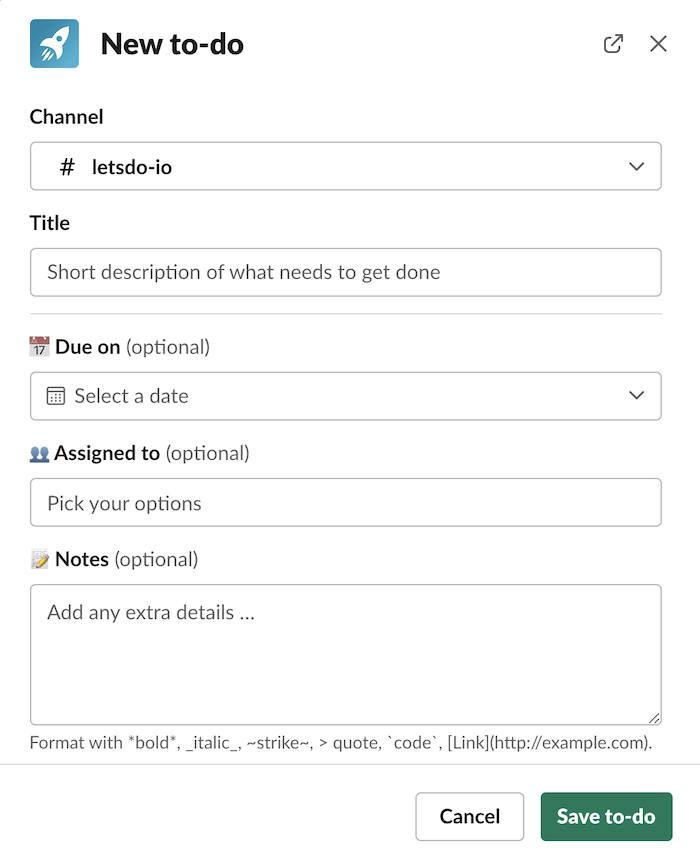
2. Organize Tasks by Channel
Learn more about how teams manage projects in Slack by creating a structured approach using channels as natural divisions for different projects or teams:
- Keep task discussions focused
- Make information easy to find
- Ensure the right people see relevant tasks
- Create clear ownership and accountability
3. Use Smart Notification Strategies
Don't let important tasks get lost in the shuffle. Our guide to setting reminders in Slack shows you how to:
- Set up custom notifications for task assignments
- Use due date reminders
- Create dedicated time blocks for task reviews
- Leverage @mentions strategically
4. Implement Project Management Views
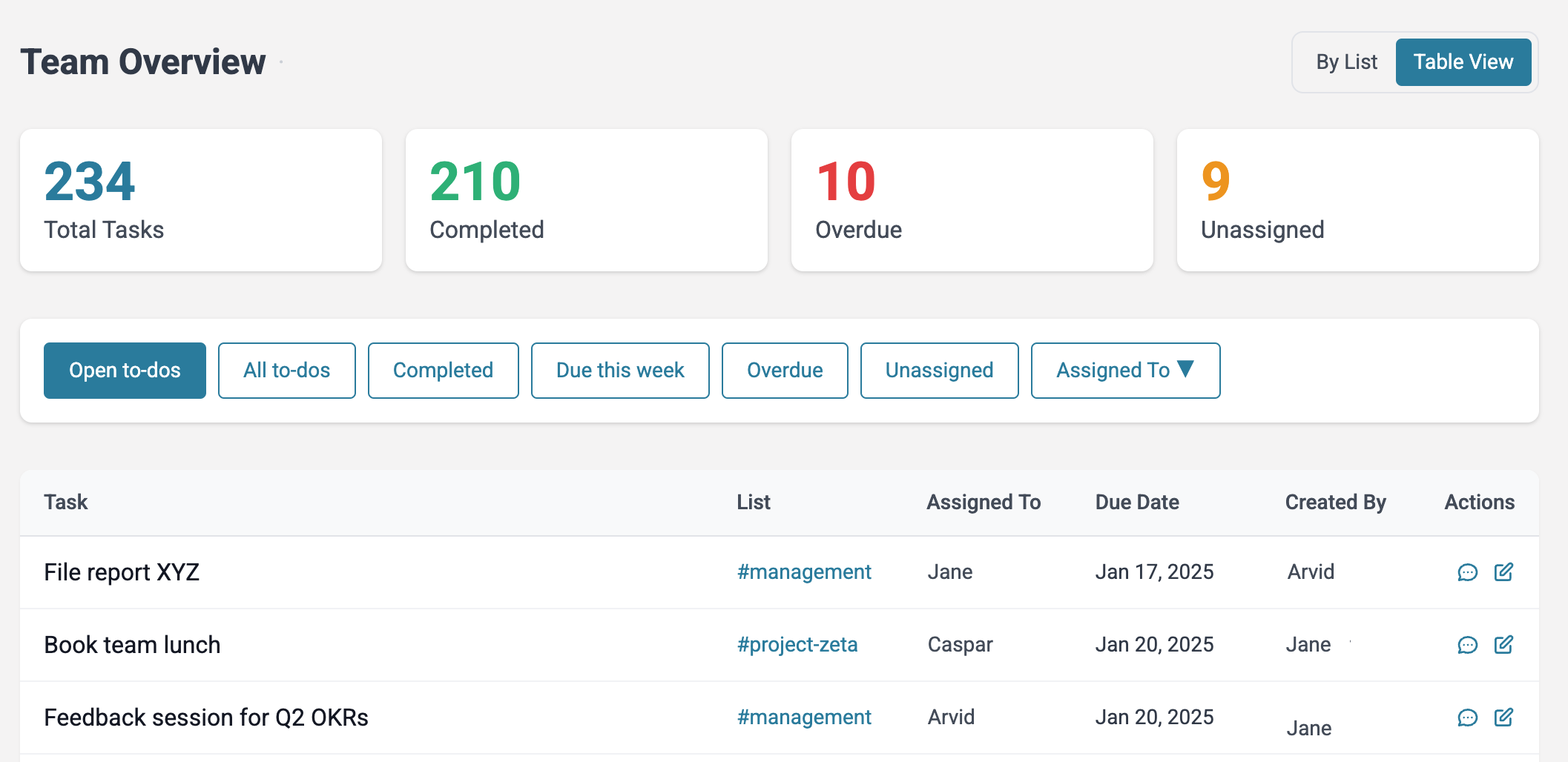
For team leads and project managers, having a clear overview is crucial. Modern task management solutions like Let's Do offer team overview features that provide:
- A bird's-eye view of all tasks across channels
- Quick metrics on completed, overdue, and unassigned tasks
- Filtering capabilities by team member
5. Create Channel-Based Workflows
Organize your work effectively by:
- Using dedicated channels for different projects
- Setting up recurring tasks for regular responsibilities
- Pinning important task lists for easy access
- Creating standardized task creation processes
6. Leverage Task Comments and Updates
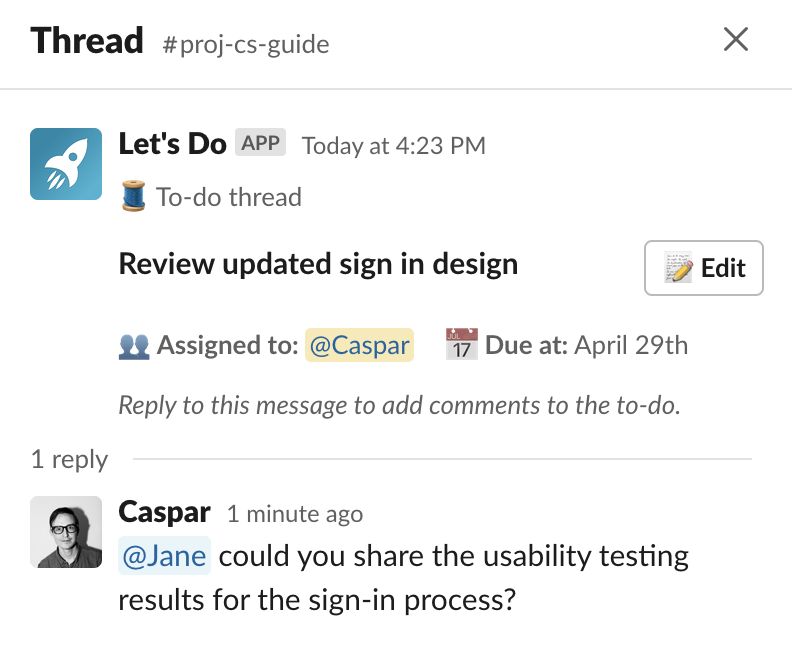
Keep communication contextual:
- Use threaded discussions for task updates
- Attach relevant files and links
- @mention team members for attention
- Keep task histories for reference
7. Set Up Recurring Tasks
Many teams have regular tasks that need to happen on a schedule. Check out our guide on repeated tasks in Slack to learn about:
- Monthly reports
- Weekly team meetings
- Routine maintenance
- Regular check-ins
8. Use Personal Task Lists
Keep individual work organized while maintaining team visibility. Using Let's Do you can create a personal to-do list that is not connected to any channel. Use this to keep track of your own tasks and projects Learn more about working with personal to-do lists in Slack.
Getting Started
Effective task management in Slack doesn't require expensive workspace upgrades. With the right tools and strategies, you can create a powerful task management system that keeps your team productive and aligned, all while staying on Slack's free plan.
Ready to get started? Add Let's Do to your Slack workspace and start managing your tasks today!
Frequently asked questions
Does Slack have built-in task management?
Slack has a built-in Lists feature for tracking tasks, but it requires a paid plan (Pro or higher). On the free plan, Slack itself offers only informal workarounds, such as pinned messages, the /remind command, and Canvas documents. For structured task management on the free plan (assignments, due dates, recurring tasks, completion tracking), most teams use a dedicated Slack app.
How do I manage tasks in Slack for free?
On Slack's free plan you can manage tasks informally with pinned messages, threads, the /remind command, and Canvas documents. These work for light needs but have no assignments, due dates, or completion tracking. For structured task management without upgrading Slack, install a dedicated app like Let's Do, which adds shared lists, assignments, due dates, recurring tasks, and a team overview while you stay on the free plan.
How do I manage tasks in Slack?
You can manage tasks in Slack using a dedicated task management app like Let's Do. Install it from the Slack App Directory, then create to-do lists in any channel. Assign tasks to team members, set due dates, and track progress without leaving Slack. You can also use Slack's built-in Lists feature, but it requires a paid Slack plan.
Can I use Slack for task management on the free plan?
Yes. While Slack's built-in Lists feature requires a paid plan, third-party task management apps like Let's Do work on Slack's free plan. You get shared to-do lists, assignments, due dates, recurring tasks, and a team overview for a flat monthly fee, regardless of how many team members you have.
What are the best task management apps for Slack?
Popular task management apps for Slack include Let's Do, Workast, and Asana's Slack integration. Let's Do is built specifically for Slack with features like channel-based to-do lists, recurring tasks, and a team overview dashboard. The best choice depends on your team size, budget, and whether you need a standalone project management tool or a Slack-native solution.