Reminders & Notifications
Let's Do keeps you informed with daily reminders, assignment notifications, and completion alerts.
Assignment notifications
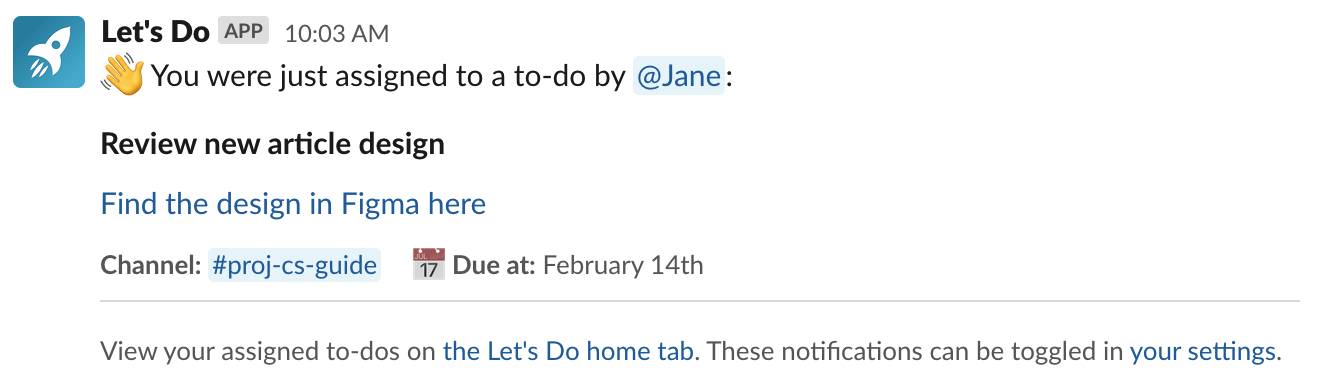
When you create a to-do and check "Notify assignees", each assigned person receives a one-time direct message in Slack letting them know about the task. The message includes the to-do title, description, which channel it belongs to, the due date, assignees, and subtask checkboxes.
Assignees are also notified when the title, due date, or description of a to-do they are assigned to is changed.
You can turn off assignment notifications in your notification settings if you prefer not to receive them.
Notification settings
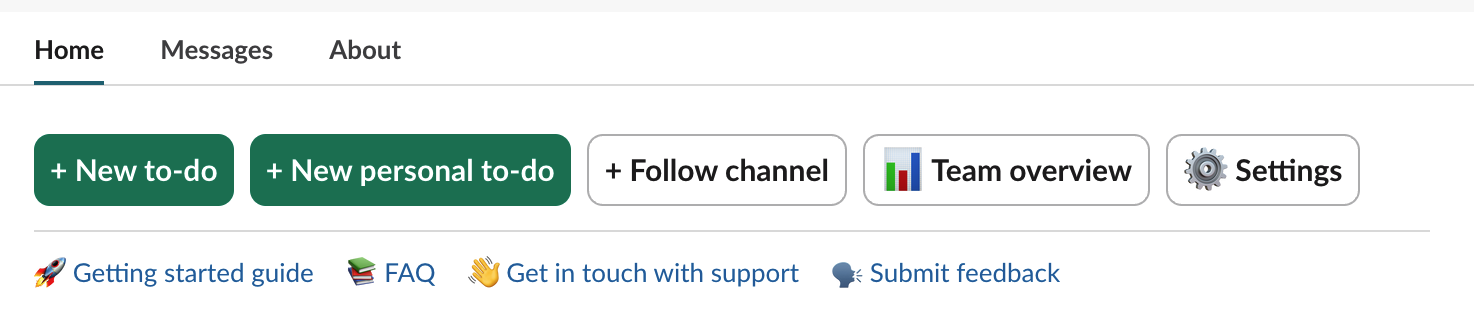
Each team member configures their own notification preferences via the Settings button in the App Home toolbar.
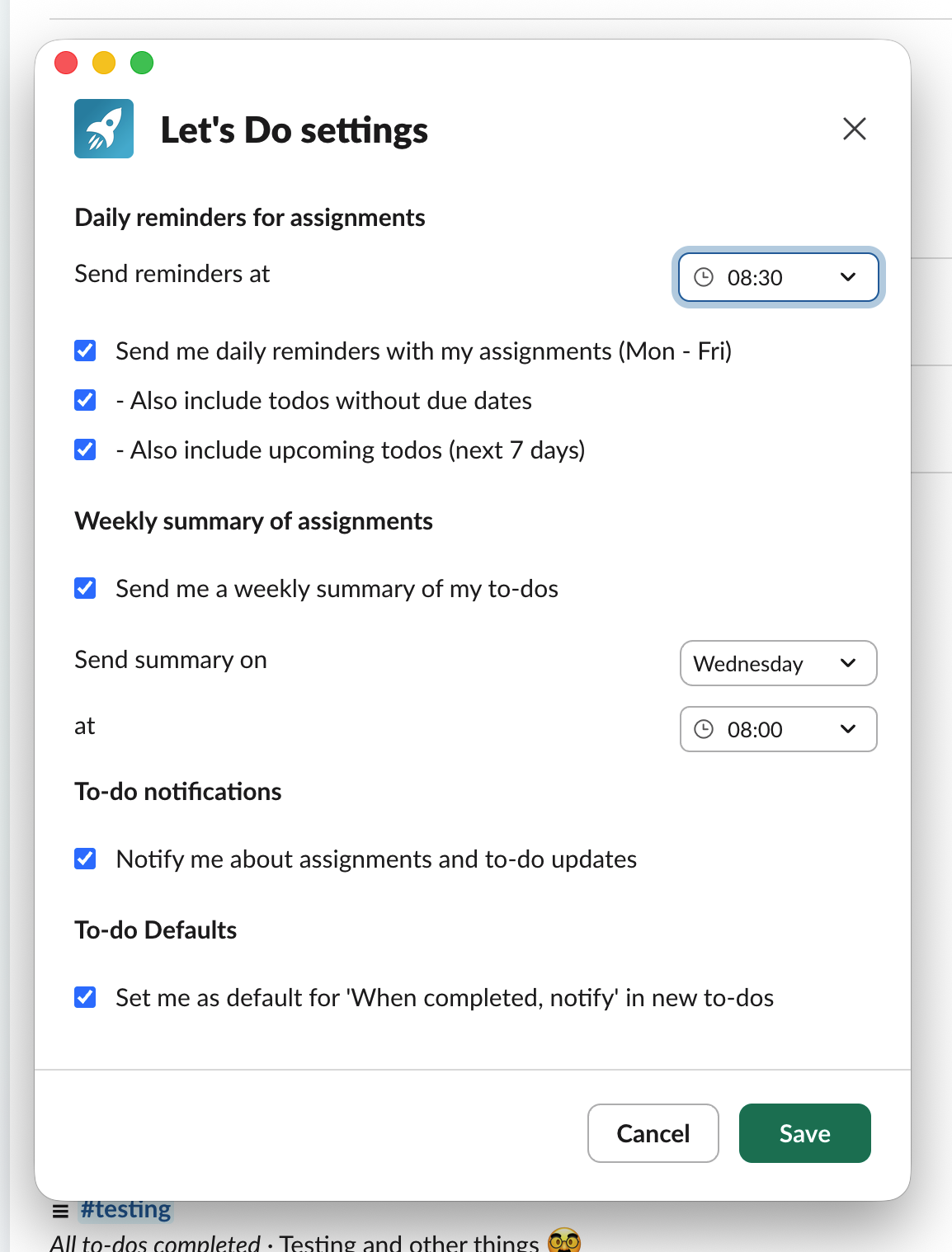
Available settings:
- Daily reminders (default: ON, 9:00 AM on weekdays) — configure the delivery time and optional extras like including todos without due dates or upcoming todos
- Weekly summary (default: OFF) — choose the day and time for a weekly digest of your assigned to-dos
- Assignment notifications (default: ON) — get notified about new assignments and to-do updates
- Default "When completed, notify" (default: OFF) — automatically adds you to the "notify when completed" list on new to-dos you create
There is no admin override for notification settings. Each person controls their own preferences.
Daily reminders
When enabled, you receive a daily direct message on weekday mornings at your configured time (default 9:00 AM). The message lists all tasks assigned to you that are due today or overdue.
Reminders are only sent if you have at least one uncompleted to-do assigned to you. The message shows up to 40 to-dos. If you have more, a "View all" link takes you to the App Home.
Overdue tasks keep appearing in your daily reminder until they are completed or their due date is updated.
Optional settings you can enable:
- Include tasks with no due date
- Include tasks due in the next 7 days
Each reminder includes a "Stop sending reminders" button at the bottom, so you can disable daily reminders directly from the message.
Make sure your time zone is set correctly in Slack for reminders to arrive at the right time. You can check this in your Slack time zone settings.
Weekly summary
The weekly summary is off by default. When enabled, you choose which day and time to receive it.
The summary lists all tasks currently assigned to you, organized into two sections: to-dos with due dates (sorted by earliest first) and to-dos without due dates. It shows up to 30 to-dos total, and is only sent if you have at least one uncompleted to-do.
The weekly summary message includes a link to open the Let's Do home tab, where you can manage your notification settings.
Nudge
Need to gently remind someone about a task? Use the Nudge option from the to-do's overflow menu (three dots). Each assignee (other than you) receives a direct message with the to-do details, including the title, due date, and a link back to the home tab.
To avoid spamming, you can only nudge once per to-do every 24 hours. The Nudge option only appears on to-dos that have assignees other than yourself.
Completion notifications
When creating or editing a to-do, you can use the "When completed, notify" field to choose a person who will receive a direct message when the task is marked as done. This is useful for managers, stakeholders, or anyone waiting on the result.
If you want to be included automatically on every to-do you create, enable "Set me as default for 'When completed, notify'" in your notification settings.
Channel notifications
You can also have task completions posted to the channel where the to-do list lives. When enabled, a message is posted showing who completed the task and how many tasks remain in the list.
To configure this, open the list's Settings from the "..." menu next to the list name on the Home tab, or use /todo settings in the channel. You can also toggle it per to-do when creating or editing a task using the "Notify channel when completed" checkbox.