
Managing tasks can be overwhelming, especially for fast-moving teams. With the constant flow of messages and notifications, important to-dos can easily get lost in the shuffle. This is where an effective Slack task management workflow becomes essential for maintaining team productivity and momentum. If you're still deciding which to-do list approach works best in Slack, pinned lists are one of the most practical options for team channels.
How to pin a message in Slack
To pin a message in Slack, hover over the message, click the three-dot More actions menu (•••), and select Pin to channel. The message is then saved to the channel's pinned items, accessible to everyone via the pin icon (📌) below the channel name. Pinning works in channels and direct messages, on desktop and mobile, and any member of a channel can pin or unpin a message.
Step by step:
- Open the channel or DM that has the message you want to pin.
- Hover over the message (on mobile, tap and hold it).
- Click the three-dot More actions menu (
•••). - Select Pin to channel (or Pin to conversation in a DM).
- The message now appears under the 📌 pin icon at the top of the channel.
To view pinned messages, click the pin icon below the channel name to open the list of everything pinned in that channel. To unpin a message, open the pinned items, hover over the one you want to remove, and select Remove pin (or use the message's ••• menu and choose Unpin from channel).
There's no hard limit you'll run into in normal use, but channels with dozens of pins get cluttered fast, so most teams keep only a handful of genuinely important items pinned. That's a key limitation: pinned messages are static. They're great for announcements, links, and reference material, but they don't update over time. Pin a list of tasks as a plain message and it's out of date the moment someone finishes one.
For tasks that need to be tracked, checked off, and updated by the team, a pinned to-do list is a better fit than a pinned message. Instead of a static snapshot, you get a living list that reflects what's done and what's still open, the rest of this guide covers how to set one up.
Let's Do: Your Slack To-Do List Solution
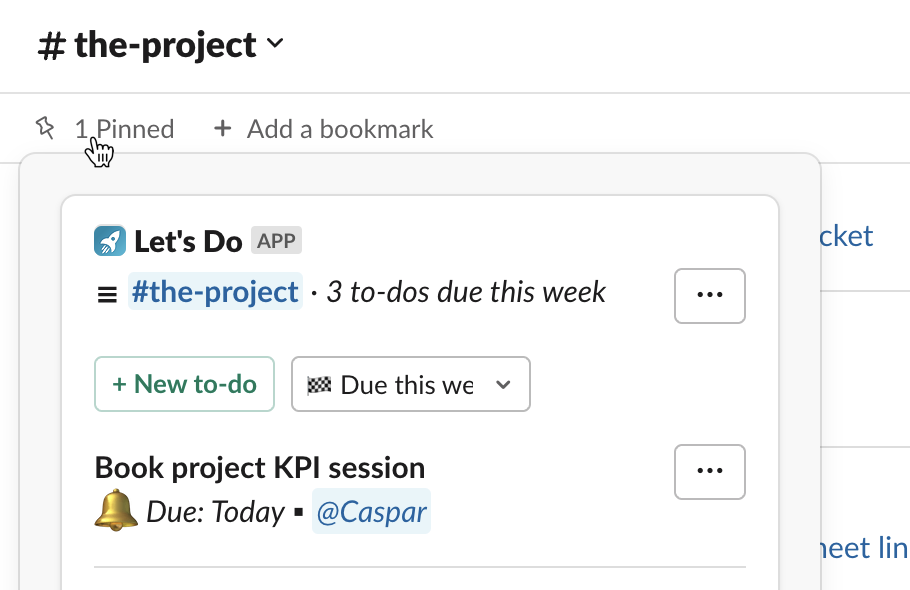
Let's Do is a task manager designed for Slack teams that allows you to create easily accessible to-do lists directly within Slack channels. One standout feature, Pinned To-Do Lists, offers a simple yet practical solution to the common problem of task visibility and team alignment. This feature is crafted to simplify your team's daily workflow by keeping important tasks easily accessible to all team members in the context of Slack channels.
Pinned To-Do Lists are particularly useful for team or project channels in Slack. Whether managing a long-term project or coordinating daily tasks, this feature helps keep everyone on the same page. Pinning a to-do list in your team's Slack channel creates a central point of reference that all team members can easily access and update.
By integrating seamlessly with Slack's interface, Let's Do transforms your communication hub into a powerful task management system. This approach not only streamlines workflow but also reduces the need for additional task management tools, keeping your team's focus where it matters most - in your Slack workspace.
How to Create and Pin To-Do Lists in Slack Channels
Creating and pinning a to-do list for your team is a straightforward process with Let's Do:
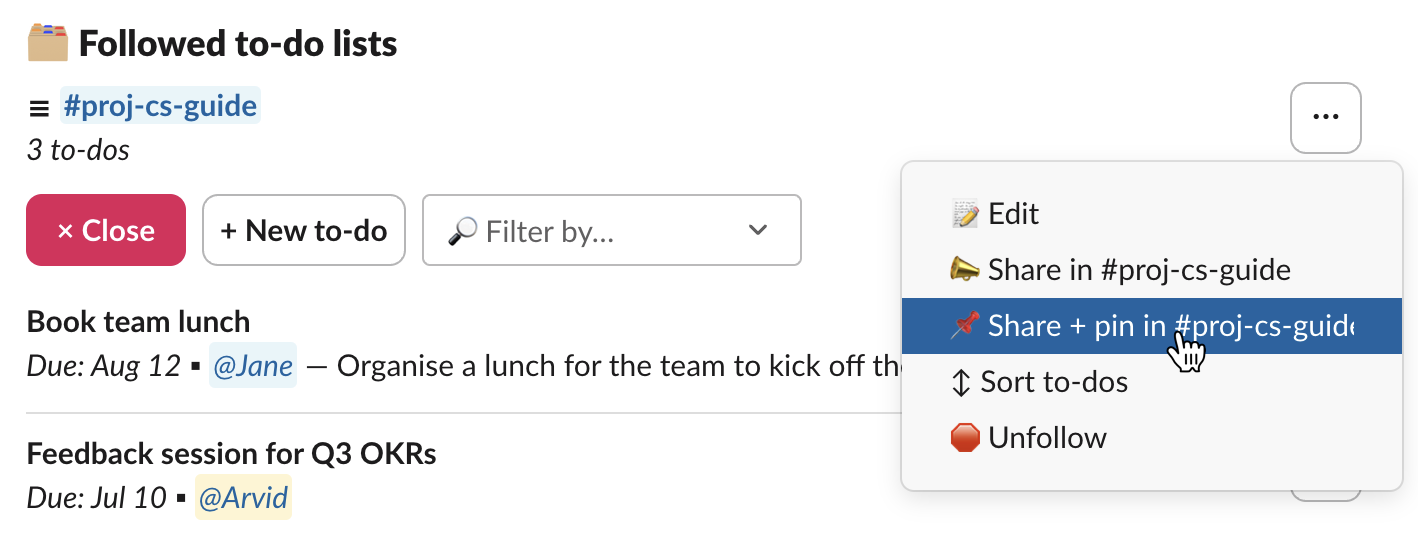
- Open the Let's Do app in your Slack workspace, or add it from the Slack app directory.
- Find the to-do list you want to pin and click the
•••button to the right of the list name. - Select the
Share + pin in #channel-nameoption. - The list will be shared in the channel and automatically pinned.
Once pinned, team members can find the list in the channel by clicking the "Pinned" button just under the channel name in Slack. This pinned list becomes a central place to view tasks related to the channel. It is automatically updated with any changes, ensuring everyone has instant access to the most up-to-date information.
Task Filtering: Customizing Slack Workflows
Let's Do includes filtering options for to-do lists to help teams to have the priorties easily visible. Your filtering options are saved to the pinned to-do list so all team members gets the same view.
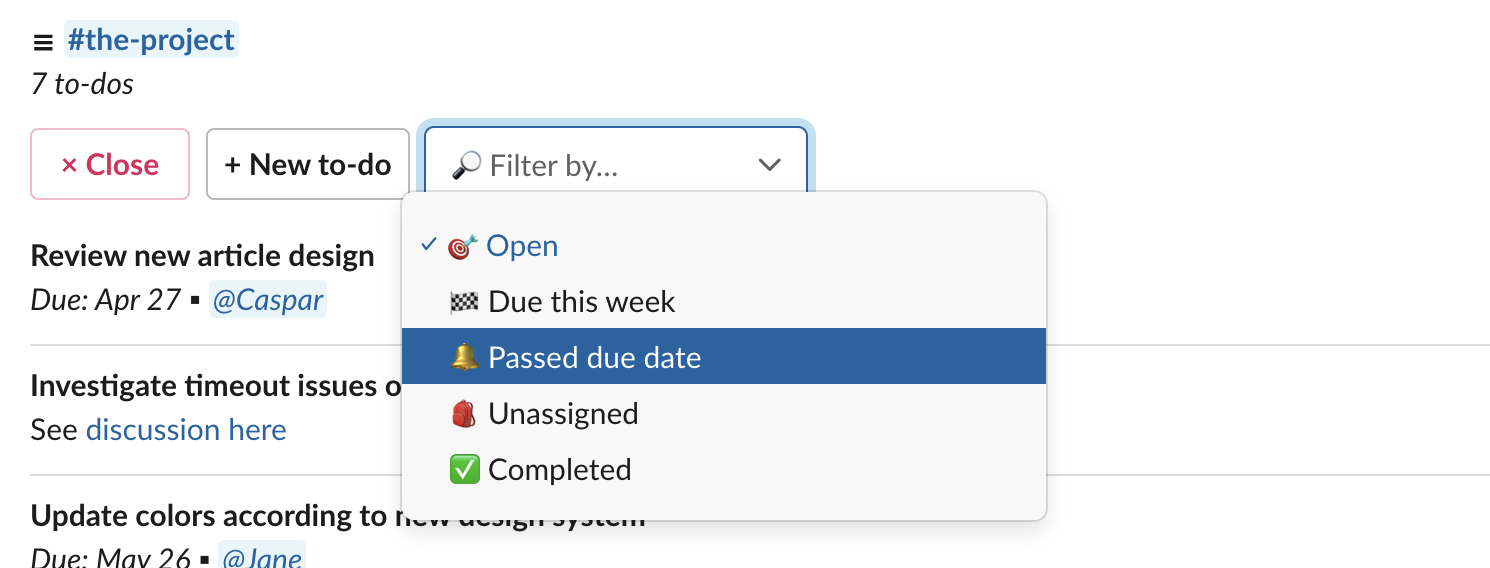
Choose from these filtering options:
- Open tasks (default view)
- Tasks due this week
- Overdue tasks
- Unassigned tasks
- Completed tasks
For example, you can pin a list of tasks due this week in your project channel, and it will automatically update as the week progresses for everyone who views the to-do list. This helps the team easily view the current priorities or deadlines, creating a quick and easy Slack workflow for tasks.
Best Practices for Team Task Management in Slack
Regular Team Updates: Keep your pinned lists current to reflect ongoing project priorities, ensure everyone completes tasks when done, and task details are up-to-date.
Strategic Task Filtering Use filters to create focused views for different team needs or project phases.
Clear Task Ownership Ensure each task has a designated team member for better accountability.
Realistic Project Planning: Use the "Due this week" filter to maintain a manageable workload across the team.
Celebrate Team Achievements: Acknowledge completed tasks to maintain team motivation and track progress. A short message or a few emojis can make a big difference.
Upgrade Your Slack Productivity with Let's Do
Let's Do's Pinned To-Do Lists offer a practical Slack-native solution for managing tasks within Slack, especially for team and project coordination. By providing easy access to current task information, improving team alignment, and offering just enough customization options, Let's Do helps streamline your team's daily workflow in Slack.
With Let's Do, you can transform your Slack channels into efficient project management hubs, ensuring everyone stays on track and focused on the most important tasks.
Frequently asked questions
How do I pin a message in Slack?
Hover over any message in a Slack channel, click the three-dot menu (•••), and select Pin to channel. The message will appear under the pin icon below the channel name. On mobile, tap and hold the message, then choose Pin. For pinning a dynamic to-do list instead of a static message, use a task management app like Let's Do.
How do I see pinned messages in Slack?
Click the pin icon (📌) below the channel name at the top of any Slack channel. This opens the list of all messages pinned in that channel, in the order they were pinned. The same works in direct messages.
How do I unpin a message in Slack?
Open the channel's pinned items by clicking the pin icon, hover over the message you want to remove, and select Remove pin. You can also unpin from the message itself: click its three-dot menu and choose Unpin from channel. Any channel member can unpin a message.
How do I create a to-do list in Slack?
You can create a to-do list in Slack using a task management app like Let's Do. Install it from the Slack App Directory, then use the /todo command or the app home to create to-do lists in any channel. You can assign tasks, set due dates, and pin the list so it's always visible to your team.
Can I pin a task list in a Slack channel?
Yes. With Let's Do, you can pin a to-do list directly in any Slack channel. The pinned list appears as a message in the channel that stays accessible to all members. Team members can check off tasks, add new ones, and filter by status, all without leaving Slack.